A template gives you a gateway whose requests and responses already look like a real provider's. Pick one, name it, and the endpoints work straight away. There is no schema to write and no response to configure.
Before you start
- A confirmed email address on your account
Create it
- Open Templates in the sidebar. You can also reach it from the Templates button on the Payment Gateways page.
- Find the provider you want. Click View details to see what a template includes.
- Click Use template.
- Enter a name. It becomes part of the gateway's slug, so pick something you will recognise.
- Set the currency as a three-letter code, such as
USDorBDT, and save.
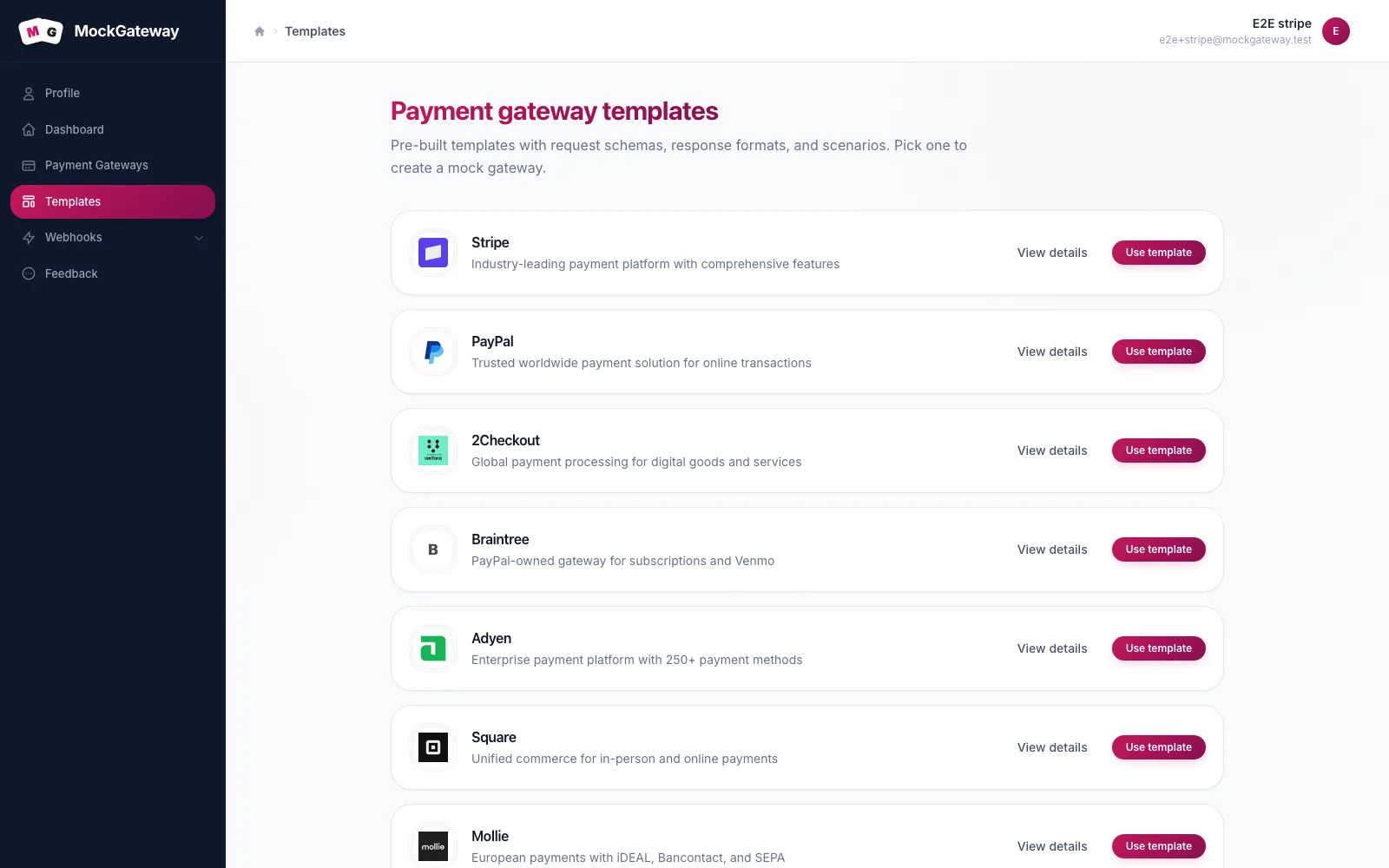
The fourteen templates
| Group | Templates |
|---|---|
| Card platforms | Stripe, Adyen, Braintree, Checkout.com, Square, Worldpay, Authorize.Net |
| Wallets and marketplaces | PayPal, Skrill, Payoneer, 2Checkout |
| Regional | Razorpay, Mollie, Helcim |
The grouping is only for browsing. What actually differs is the request field names, the response body, the authentication scheme, and the identifier format each one hands back.
Picking one
If you know which provider you will integrate with, take the matching template. Its field names and identifiers will be closest to the code you end up writing.
If yours is not listed, choose on shape rather than brand. Flows that trade credentials for a token behave like PayPal. Flows that return an identifier and a hosted URL in one call behave like Stripe. Matching the shape matters more than matching the name.
What you get
Open the new gateway and you will find six tabs: Overview, Scenarios, Transactions, Integration, Schema, and Settings.
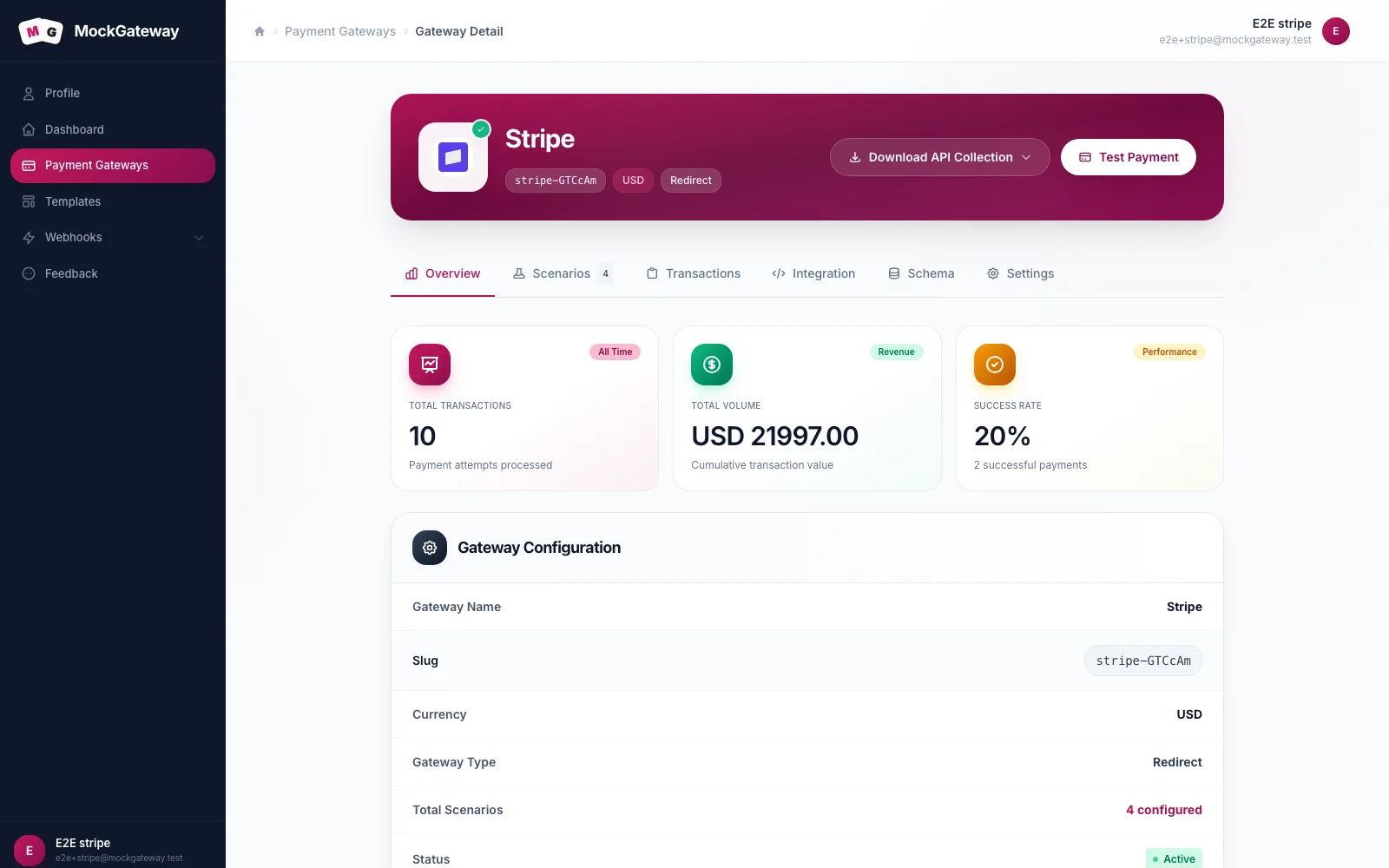
| Value | Where |
|---|---|
| Slug — your name plus a short unique suffix | Overview |
API key, starting sk_test_ | Integration |
| Request fields and their types | Schema |
| Results offered on the hosted page | Scenarios |
| Webhook and redirect settings | Settings |
Two buttons sit at the top: Download API Collection exports the calls, and Test Payment runs one without leaving the page.
Authentication is not the same everywhere
Templates authenticate the way the provider they copy does. One may want a Bearer token, another Basic credentials, an API key header, or a query parameter.
Two-step templates go further. A PayPal-shaped gateway wants Basic credentials at its OAuth endpoint first, then the Bearer token that comes back. A token minted that way is accepted no matter which scheme the gateway is set to.
Check the Integration tab before writing the client.
Check it worked
Send a payment to the gateway's init endpoint with its API key. A reply carrying a payment URL means it is live. The quickstart walks through that call.
If it didn't work
The name is rejected.
Names are required and capped at 255 characters.
The currency is rejected.
It must be exactly three characters.
Calls return Gateway Setup Incomplete.
The gateway defaults are incomplete. Restore its own template defaults or contact support.
Next
If no template matches your provider, build a gateway from scratch instead.
Was this page helpful?